
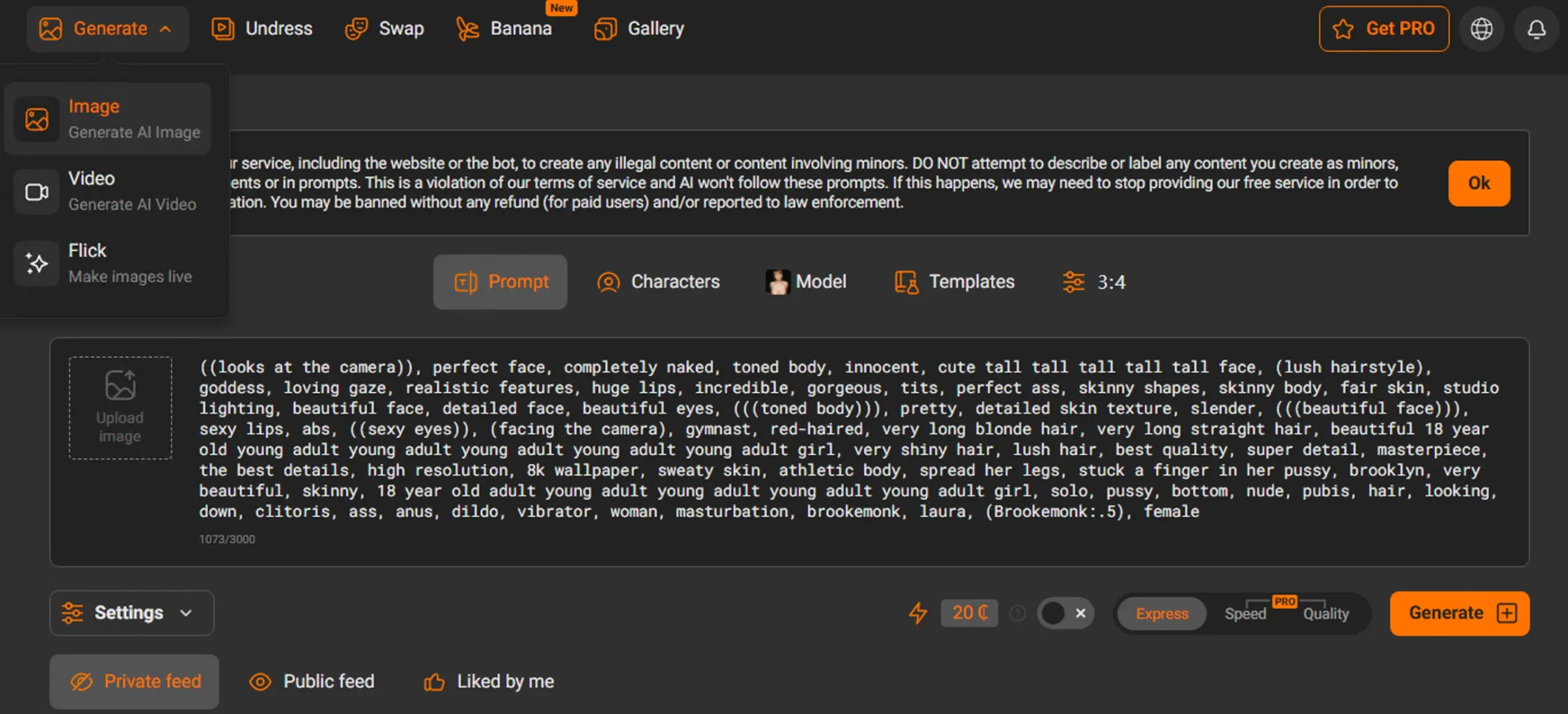
PornWorks AI provides browser-based AI image and video generation for adults. This guide describes the workflows and controls that are currently visible in the product: text-to-image, image-to-image, text-to-video, image-to-video, model selection, compatible LoRAs, prompt templates, generation settings, credit estimates, progress, and private recent history.
Service availability, guest allowance, access, and cost are shown separately in the generator before submission. An anonymous visitor can use a guest image allowance only when the workspace reports that generation is available and an allowance remains. Video generation and additional account use require sign-in and sufficient credits. Completion time varies with the selected model, queue, worker startup, input, and generation settings.
목차
- PornWorks AI란?
- Getting Started
- Workflow 1: AI 포르노 이미지 생성기
- Workflow 2: AI 포르노 비디오 생성기
- Control 1: Model Selection
- Control 2: Compatible LoRAs
- Control 3: Prompt Templates
- Control 4: Settings and Cost Estimates
- Control 5: Progress and Private History
- Tips for Better Results
- Guest Access, Accounts, and Credits
- Privacy and Responsible Use
- 자주 묻는 질문
PornWorks AI란?
PornWorks AI is a web interface for creating adult-themed AI images and videos. The image workspace supports a new image from a written prompt and a transformation based on an uploaded starting image. The video workspace supports a new clip from a written scene and animation based on an uploaded starting image.
The model catalog determines which workflows, aspect ratios, formats, 설정, LoRAs, and templates are compatible. The interface keeps those choices visible before a request is submitted and shows the selected model’s estimated credit cost. A model or control that is not offered in the current interface should not be treated as available.
The generator interface currently has locale routes for English, Simplified Chinese, Traditional Chinese, 일본어, 러시아어, 독일어, 스페인어, 포르투갈어, 이탈리아어, 프랑스어, 그리고 한국어. Editorial articles may not be available in every interface language.
Getting Started
단계 1 — Open the Appropriate Generator
Use the AI 포르노 이미지 생성기 for still images or the AI 포르노 비디오 생성기 for motion. The combined AI 포르노 생성기 also provides navigation between the two workspaces.
단계 2 — Check Access and Cost
Read the status line above the workspace. It reports service availability, whether a guest image allowance remains, whether sign-in is required, and the available account credit balance when that information is available. A remaining allowance is not, by itself, a readiness signal: if generation is temporarily unavailable, the workspace stops the request before an attempt or credit use. The estimated cost changes with the selected model and compatible options.
단계 3 — Choose a Workflow
Select the text workflow when you want to begin from a written description. Select the image workflow when you have a permitted starting image that you want the selected model to transform or animate. An uploaded image is a generation input; it does not create a public page.
Workflow 1: AI 포르노 이미지 생성기
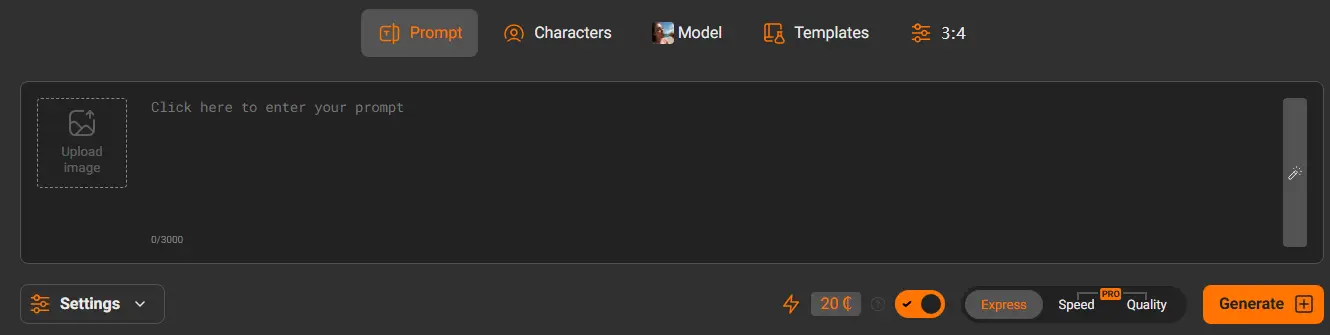
The image generator supports text-to-image and image-to-image. Available models, LoRAs, templates, aspect ratios, and advanced settings are loaded from the current catalogs and filtered for compatibility.
Text-to-Image
- Select Text to image.
- Write a prompt that describes the adult subject, 구도, 배경 설정, 조명, and visual style.
- Choose a compatible model. Review its preview and estimated credit cost.
- Optionally add a compatible LoRA or apply a prompt template.
- Review the aspect ratio and any advanced controls offered for that model.
- Submit the request and follow its progress in the workspace or private recent history.
Image-to-Image
- Select Image to image.
- Upload a supported starting image that you are allowed to use.
- Describe the transformation in the prompt.
- Select a model that supports the image-to-image workflow.
- Adjust denoise or other compatible controls when the interface offers them.
- Review the cost and submit.
Image-to-image transforms the supplied image as a whole according to the prompt and settings. The current product does not present a region-painting or masked local-editing tool, so this workflow should not be described as selective local editing.
Writing a Useful Image Prompt
- 피사체: describe an adult subject and the visible characteristics relevant to the composition.
- 장면: state the setting and important background elements.
- Composition: specify portrait, full-body, 클로즈업, or another framing choice.
- 조명: describe the direction, softness, 색상, or mood of the light.
- 스타일: use a model, compatible LoRA, or prompt wording that matches the intended visual treatment.
Workflow 2: AI 포르노 비디오 생성기
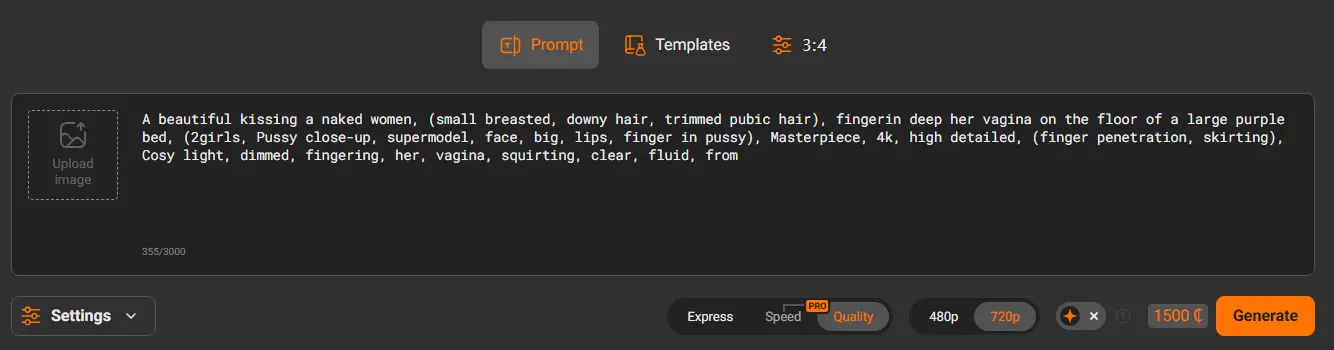
The video generator supports text-to-video and image-to-video. Video generation uses account credits, and the compatible model cost is shown before submission.
Text-to-Video
- Select Text to video.
- Describe one focused scene, the adult subject, intended movement, 카메라 동작, 조명, and pacing.
- Select a model and one of its compatible output formats.
- Review the estimated credit cost and submit.
- Keep the private job in view or return to recent history to review its latest state.
Image-to-Video
- Select Image to video.
- Upload a permitted starting image.
- Describe motion rather than repeating every visible detail in the image.
- Select a compatible video model and format.
- Review the cost, 제출, and monitor progress.
Video completion time is not fixed. It can change with model execution time, queue depth, worker availability, and input. The elapsed indicator and current job state are more reliable than a promised completion time.
Control 1: Model Selection
Model cards identify the generation engine, compatible workflows, available formats or sizes, and estimated cost. Selecting a model also filters incompatible LoRAs and settings. Use the model preview as an example of that model’s visual direction, not as a guarantee that a new prompt will produce the same composition.
How to Compare Models
- Confirm that the model supports the chosen text or image workflow.
- Compare the estimated credit cost before submitting.
- Check which sizes, formats, and advanced controls remain available.
- Review whether selected LoRAs remain compatible after switching.
Control 2: Compatible LoRAs
LoRAs are optional model add-ons that can influence style, detail, subject treatment, or another trained concept. The catalog is API-backed and can change as availability changes. The interface filters LoRAs by the selected model’s engine, base, and workflow compatibility.
How to Use a LoRA
- Select the base model first.
- Open the Templates area and choose the LoRA catalog.
- Search or filter the compatible results.
- Use Try to load its example prompt, 또는 Add to retain the current prompt.
- Review the selected LoRA chip, weight, trigger words, slot limit, and cost before generation.
The number of available LoRAs and the number that can be combined are runtime values. The workspace displays the applicable limit rather than promising a fixed catalog size.
Control 3: Prompt Templates
Prompt templates are tested starting configurations supplied by the current catalog. A template may fill a prompt, 모델, compatible LoRA, workflow, and settings. It remains editable after application.
How to Use a Prompt Template
- Open the Templates area and select prompt templates.
- Search or filter by the available categories.
- Review the example and apply the template.
- Confirm the resulting model, workflow, 로라, and settings.
- Edit the prompt so it describes the intended original result.
Control 4: Settings and Cost Estimates
The Settings area exposes only controls accepted by the selected model and workflow. Depending on compatibility, this may include a negative prompt, size or format, prompt guidance, generation steps, seed, denoise, duration, or prompt enhancement.
Settings Checklist
- Use an allowed size or format from the current selector.
- Leave advanced values at their defaults unless a deliberate adjustment is needed.
- Use a fixed seed when the interface and model support reproducible variation.
- For image-to-image, adjust denoise only within the limits shown by the workspace.
- Review the estimated credit cost again after changing the model or output format.
Control 5: Progress and Private History
After submission, the workspace shows the job state, elapsed time, and progress information available from the service. Switching models does not turn an existing job into a new model request. Pending and completed jobs remain separate entries in the private recent-history area for the current session or signed-in account.
When a Job Is Still Running
- Use the job card’s state and elapsed indicator rather than submitting the same request repeatedly.
- You may continue configuring another generation while the existing job remains in history.
- When a background job finishes, review its completion notification and result card.
- If the service reports a failure, use the displayed error and retry action instead of assuming that credits were restored.
Generated results do not receive a public, indexable result URL by default. Public publishing should not be inferred when no publishing control is offered.
더 나은 결과를 얻기 위한 팁
프롬프트 작성 팁
- Describe one coherent scene rather than combining unrelated scenes.
- Put the most important subject and composition details near the beginning.
- Use concrete visual language for lighting, camera position, and movement.
- For video, describe motion and pacing explicitly.
- For image-to-image or image-to-video, explain the intended change rather than only restating what is already visible.
Workflow Tips
- Select the workflow before comparing models.
- Change one major variable at a time when comparing results.
- Verify that a LoRA remains selected and compatible after a model change.
- Review cost after any model, format, or template change.
- Use recent history to track a pending request instead of creating duplicates.
Guest Access, Accounts, and Credits
Image and video access are different. The image workspace reports both service availability and whether the current browser session has a guest image allowance. When generation is available and an allowance remains, that guest result carries the watermark indicated in the interface. Once the allowance is unavailable, further use requires the applicable account access and credits.
The video workspace requires sign-in and sufficient credits. Each model card and submit area shows an estimated cost. A checkout flow, where available to an eligible account, is separate from generation and should not be described as complete until the account balance is confirmed.
| Capability | Guest | Signed-in account |
|---|---|---|
| Image generation | Allowance shown by the interface; guest result is watermarked | Requires enough credits for the selected model after any guest allowance |
| Video generation | Not offered as a guest generation | Requires sign-in and enough credits |
| Cost | Current allowance status is shown before submission | Estimated model cost is shown before submission |
Privacy and Responsible Use
Recent generations are presented in a private session or account history and do not create a public, indexable result page by default. This is a product visibility rule, not a promise that processing requires no temporary storage or service provider. Generation requests are processed through the service API.
Use only prompts and uploaded images that comply with the 이용 정책, and review the 개인정보 처리방침 for data-handling details. Do not upload an identifiable person’s image without the rights and permission required for that use.
Practical Privacy Steps
- Avoid putting names, contact details, or other unnecessary personal information in prompts.
- Check that you have permission to use every uploaded starting image.
- Use the private history controls available to the current session or account.
- Do not treat a private result as proof that the underlying input may be used without consent.
자주 묻는 질문
Can I try the image generator without an account?
The image workspace displays both service availability and whether a guest allowance remains. When generation is available and an allowance remains, the guest result includes the watermark indicated in the interface. Additional use follows the access and credit status shown there.
Can a guest generate a video?
No guest video generation is offered in the current workspace. Video generation requires sign-in and enough credits for the selected model.
What is the difference between text-to-image and image-to-image?
Text-to-image begins with a written prompt. Image-to-image also requires an uploaded starting image and transforms that image according to the prompt and compatible settings.
What is the difference between text-to-video and image-to-video?
Text-to-video creates a clip from a written scene. Image-to-video begins with an uploaded starting image and uses the prompt to describe how it should move.
How long does generation take?
There is no guaranteed completion time. Runtime depends on the model, queue, worker startup, input, and settings. Use the elapsed indicator, progress state, and private recent history to follow the request.
What do LoRAs and prompt templates do?
A compatible LoRA adds a trained style or concept to the selected base model. A prompt template can fill a starting prompt, 모델, 로라, workflow, and settings. Both remain subject to current catalog and model compatibility.
Are results published automatically?
아니요. New results remain in private session or account history and do not receive a public, indexable result page by default.
Why did a setting disappear after I changed models?
The workspace filters settings, sizes, formats, and LoRAs according to the selected model and workflow. A control disappears when the new combination does not support it.
Can I use PornWorks AI on a phone?
The generators are browser-based and their interfaces adapt to mobile viewports. Large uploads and long-running jobs still depend on the device connection and browser state.
Where can I review costs before generating?
The selected model card and submit area display the estimated credit cost before the request is sent.
시작할 준비가 되셨나요?
Choose the image or video workspace, select a compatible workflow and model, review access and cost, and then submit one clear request. The interface—not a fixed marketing promise—is the source of truth for current availability, credits, 설정, and progress.